Stocktakes Online
User manual · United States
Open the portal

On the scanner

What an operator does, and what the device will and will not let them do.

Signing in

Company, site, scanner name, PIN. The device remembers the company and site from last time, so a scanner living at one warehouse does not have them retyped every shift. It never remembers the name or the PIN.
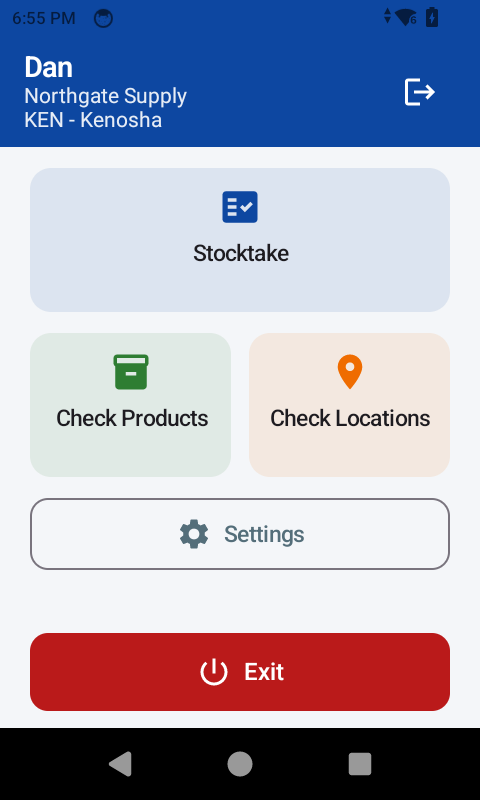
The scanner main menu after signing in, showing the operator name, company and site, with Stocktake, Check Products, Check Locations, Settings and Exit.
Signed in, and the top of the screen never stops saying who and where — Dan, at KEN. Four things an operator can do, and that is the whole application.

The company name and the site code are credentials, not labels — they decide whose data the scanner can see. They are on the sign-in sheet by the door.

Counting

Scan the bin. Scan the part. Say how many. The device then asks for the next part in the same bin until you change bin.
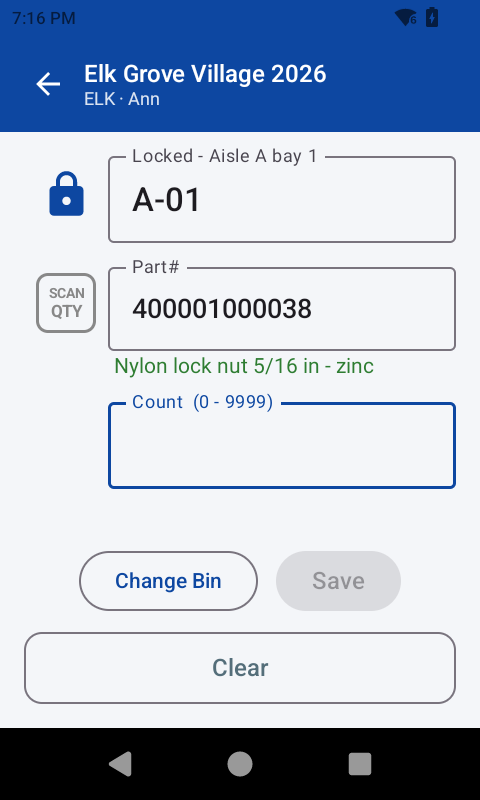
The counting screen: the bin at the top, the part barcode below it, the part description in green, and an empty count box.
Bin, part, quantity, on one screen. The description comes back in green from the portal before a number is typed, so the operator can see they have the right part while they are still looking at it.

Every scan is a live lookup. If the part is not in your reference data the scan is refused on the spot with a message, rather than being accepted and queried later. That is the whole point: a problem is found while the operator is still standing at the rack, not the next morning.
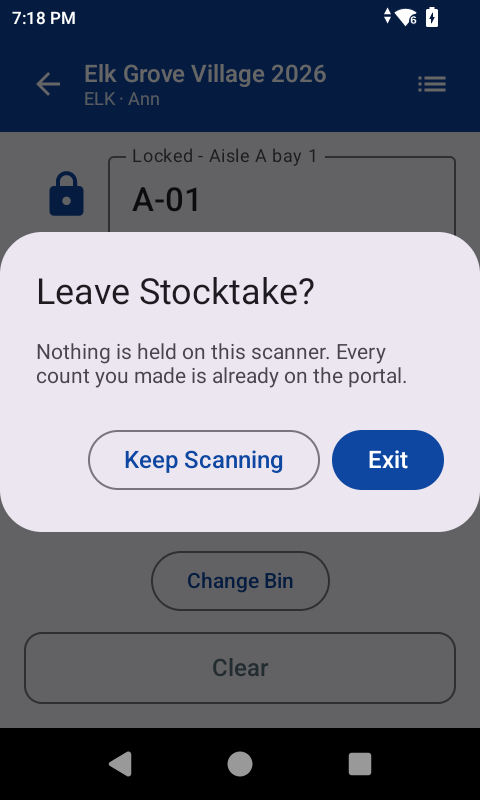
A dialog headed Leave Stocktake, saying nothing is held on this scanner and every count made is already on the portal, with Keep Scanning and Exit.
The sentence that explains the whole design. Walking out of a count is the one moment an operator wonders whether their work is safe, and this is where they are told. Nothing is queued on the device because nothing is ever held on it.
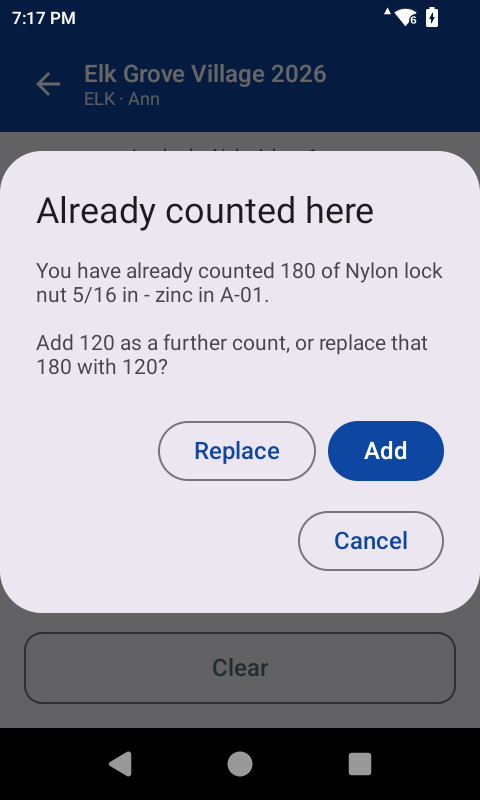
A dialog headed Already counted here, naming the quantity already counted in that bin and the one just entered, with Replace, Add and Cancel.
Counting the same part twice in one bin is normal — it sits in two places on a big rack. The device asks rather than guesses, and names both numbers so the answer does not depend on remembering what was counted ten minutes ago.

Two ways to enter a quantity

Set per operator on the portal. Keypad suits a device with real keys. Buttons — minus, the number, plus — suits a touchscreen with no keypad. An operator can change it themselves on the scanner.
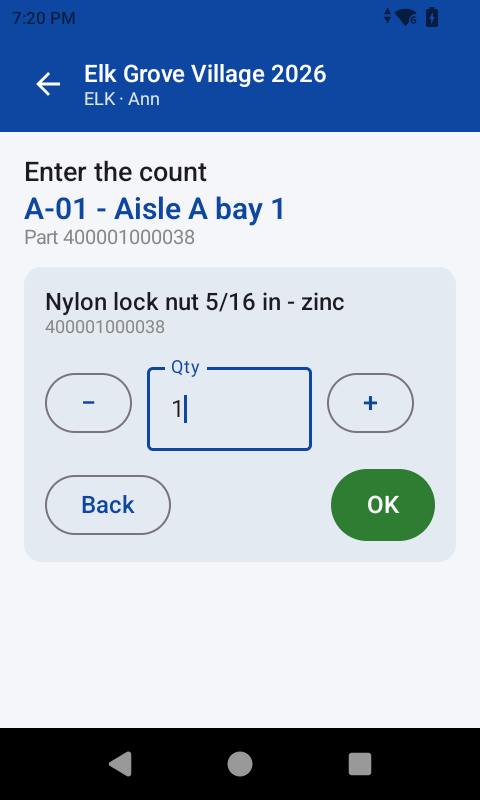
The Buttons count screen: the bin and part at the top, and a quantity of 1 between a minus and a plus button, with Back and OK.
Buttons, for a touchscreen with no keypad. It opens on 1, because one is the commonest answer and the operator taps plus from there.

What the scanner cannot do

An operator cannot start or close a stocktake, load data, add a user or export anything. All of that is the portal's job.

With no stocktake active the scanner still looks up parts and bin locations quite happily. That is how you test a site, or check a barcode, without recording anything.
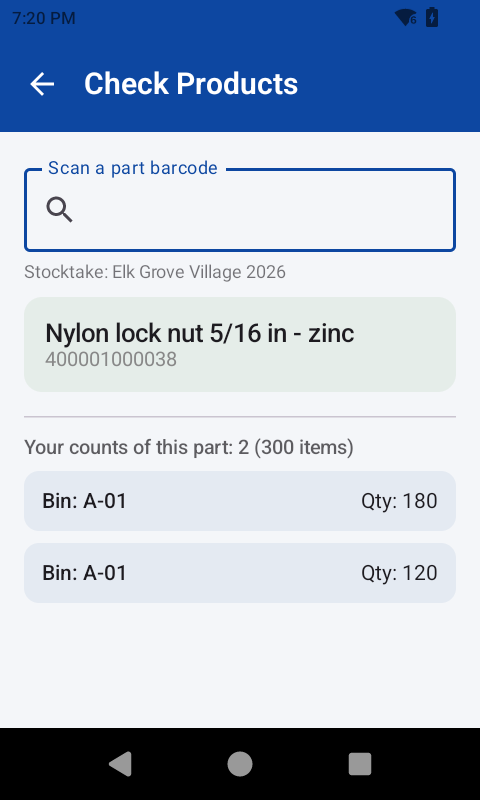
Check Products showing a scanned part, its description, and the operator’s own counts of it with the bin and quantity.
Check Products works whether or not a stocktake is running. It answers what a part is, and then what you have counted of it — somebody else’s counts are not yours to see from the floor.

Correcting a count

An operator can edit or delete their own counts, from the record on screen. Somebody else's cannot be touched — the portal answers as though it does not exist.
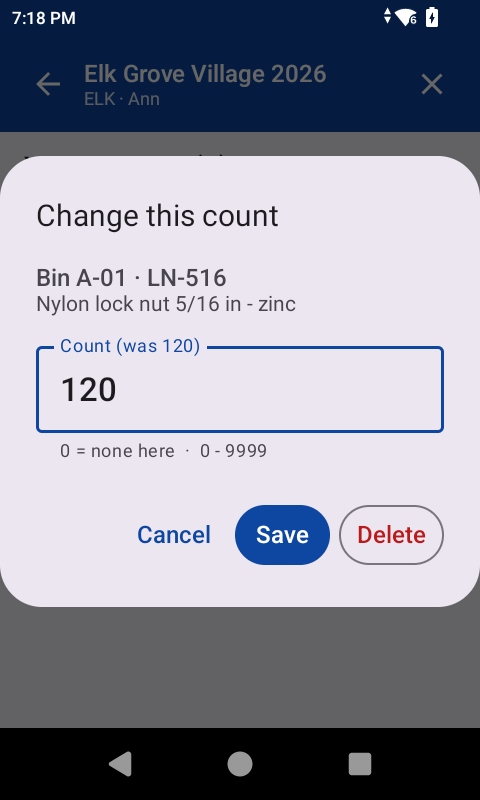
A dialog headed Change this count, showing the bin and part, a count box marked was 120, and Cancel, Save and Delete.
Tap any of your own counts to get here. The box says what it was, so a correction is made against a number rather than from memory.
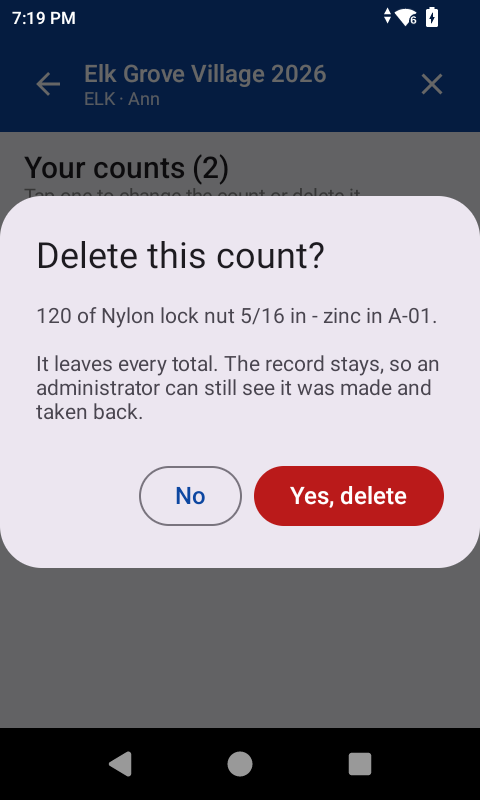
A dialog headed Delete this count, naming the quantity and part, explaining that it leaves every total while the record stays.
And the delete says what deleting means, at the moment of deciding: it leaves every total, and the record stays. An administrator can still see the figure was made and taken back.

A deleted count leaves every total but keeps its row, so an administrator can see a figure was withdrawn rather than wondering whether it was ever made.