Moving a warehouse
Everything in one building is counted out, everything is counted into the other, and the two counts are compared part by part. This page is the whole job in order: every step, every question you have to answer to carry on, and the three points that cannot be undone.
A move is a stocktake at both ends. The count that empties the old warehouse is your stocktake, and the count at the new one proves what arrived. You need two starting files — your bin locations for each site and your parts list — some scanners, and the people to use them. Nothing is installed on your own systems and nothing in your accounts changes.
Read it top to bottom. Every question here is also asked by the portal: if the answer is not the one that carries on, the button is greyed out, or the portal refuses and says why. In the examples, everything in Elk Grove Village (ELK) is moving to Kenosha (KEN).
0Choose the job
One job at a time, from start to finish.
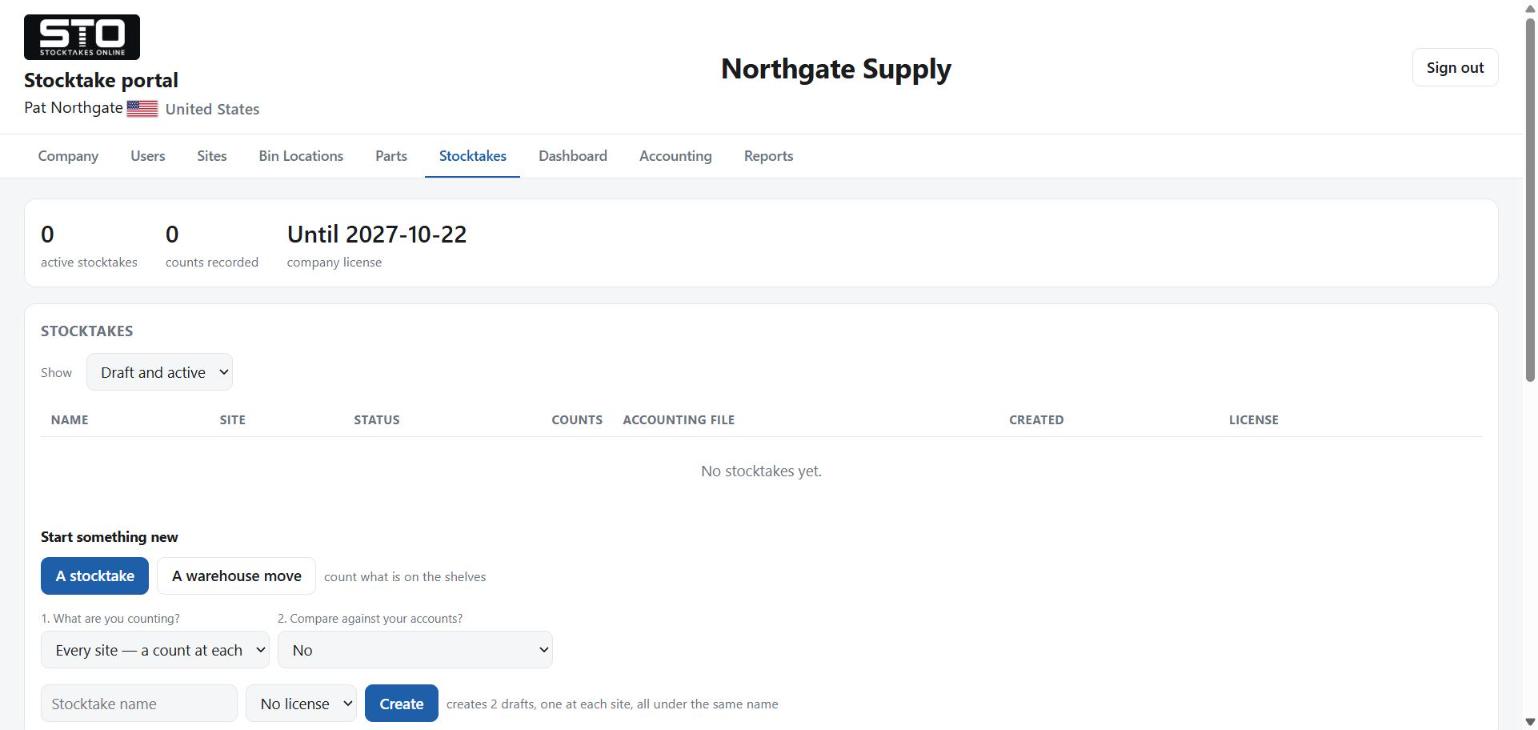
Open the Stocktakes tab. Under Start something new there are two buttons: A stocktake and A warehouse move.
If a move is already set up, they are not there. The tab says instead: “A warehouse move from Elk Grove Village to Kenosha is set up. Nothing else can be started until it is finished, or cancelled while nothing has been counted.”
Are you emptying one warehouse into another?
1Is everything ready?
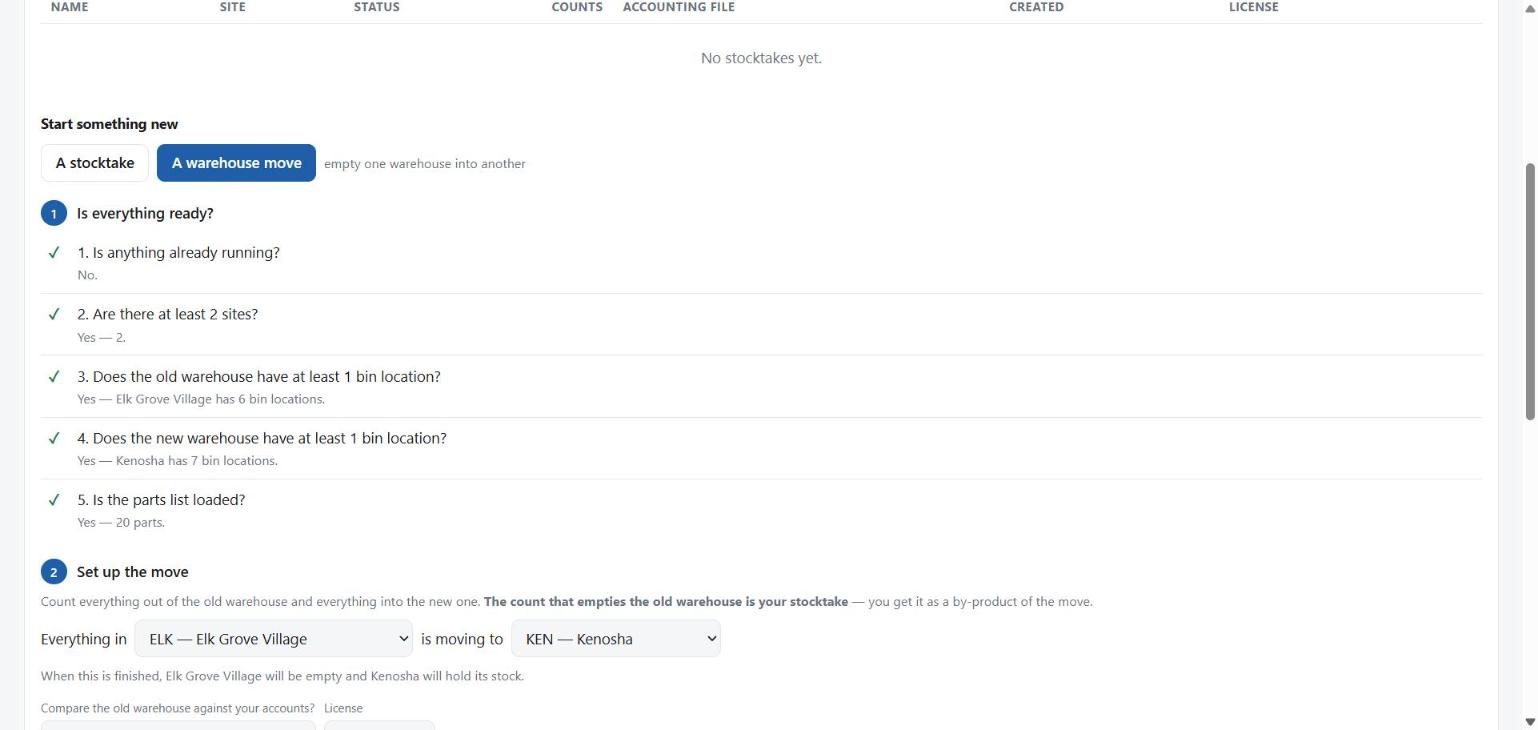
The first heading on the move form. The portal answers these five questions for you, in this order.
Under 1 Is everything ready?, the five questions below, each with a tick or a cross and the reason: “Yes — Elk Grove Village has 6 bin locations”, “Yes — 20 parts”. A cross comes with a button to the tab that fixes it. Questions 3 and 4 wait until you have chosen the two warehouses in phase 2.
Set up the move stays grey until all five are a yes.
1Is anything already running?
2Are there at least 2 sites?
KEN) is what operators type on the scanner to
sign in. See Setting up.3Does the old warehouse have at least 1 bin location?
4Does the new warehouse have at least 1 bin location?
RECEIVING is
enough: the move compares part totals, not bins, and putting stock away
into its real bins comes later. See Parts
and bin locations.5Is the parts list loaded?
The new warehouse starts with no bin locations, and that is the step people miss. Until they are loaded, an operator at the new building scans a bin label and the scanner refuses it — correctly, because that bin is not in your reference data. Question 4 is there so you find out at a desk, not with a truck at the door.
2Set up the move
The direction is decided here, once, before anything is counted.
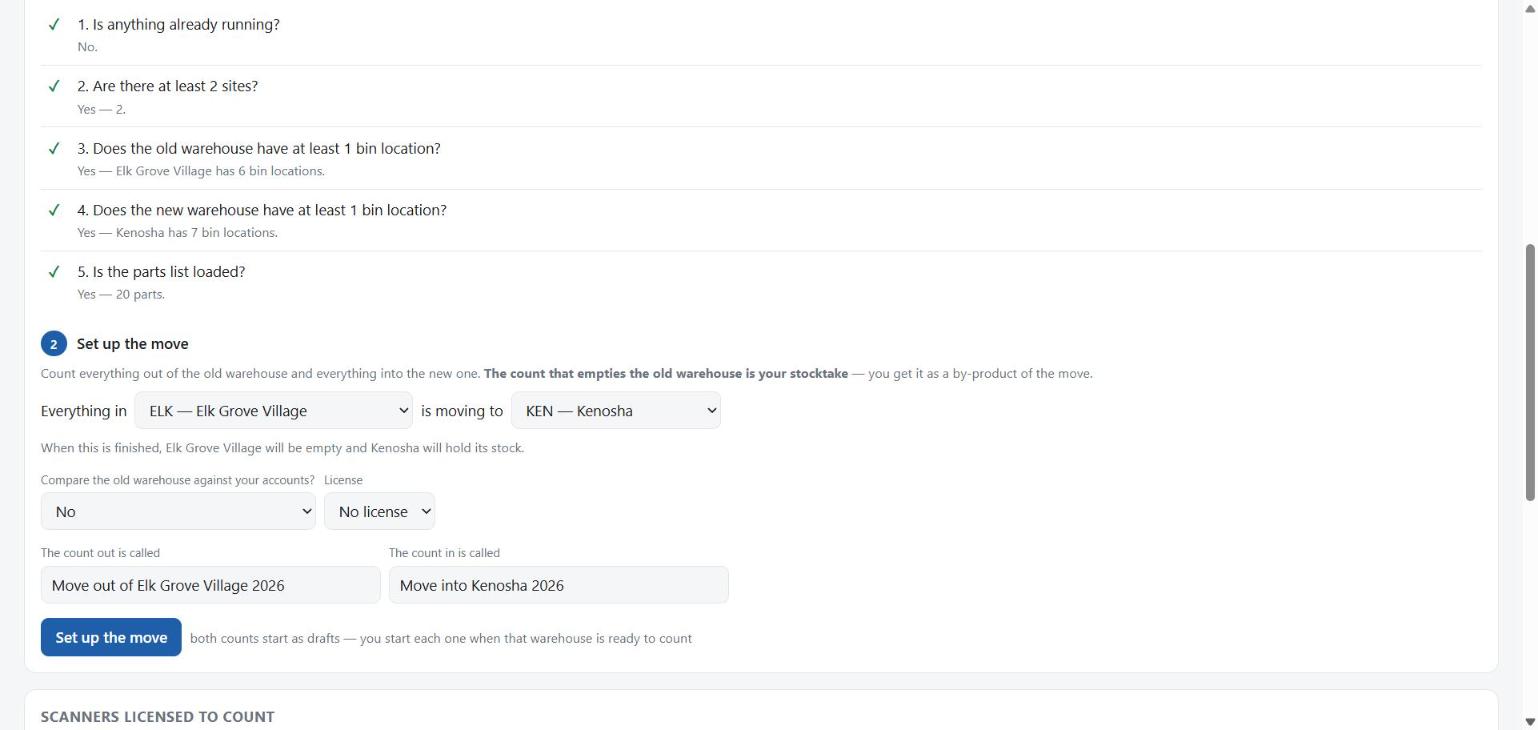
Under 2 Set up the move the form reads as one sentence: Everything in [ the warehouse being emptied ] is moving to [ where it is all going ].
Both boxes start empty: “Choose both warehouses. Nothing is chosen for you.”
First box: the warehouse being emptied, ELK — Elk Grove Village. Second box: the warehouse being filled, KEN — Kenosha.
Read the sentence under the boxes. Is it true of the buildings?
“When this is finished, Elk Grove Village will be empty and Kenosha will hold its stock.”
Compare the old warehouse against your accounts?
Choose the License. Check the two names — filled in for you as Move out of Elk Grove Village 2026 and Move into Kenosha 2026, and you can change them. Press Set up the move.
Both counts start as drafts. You start each one when that warehouse is ready to count.
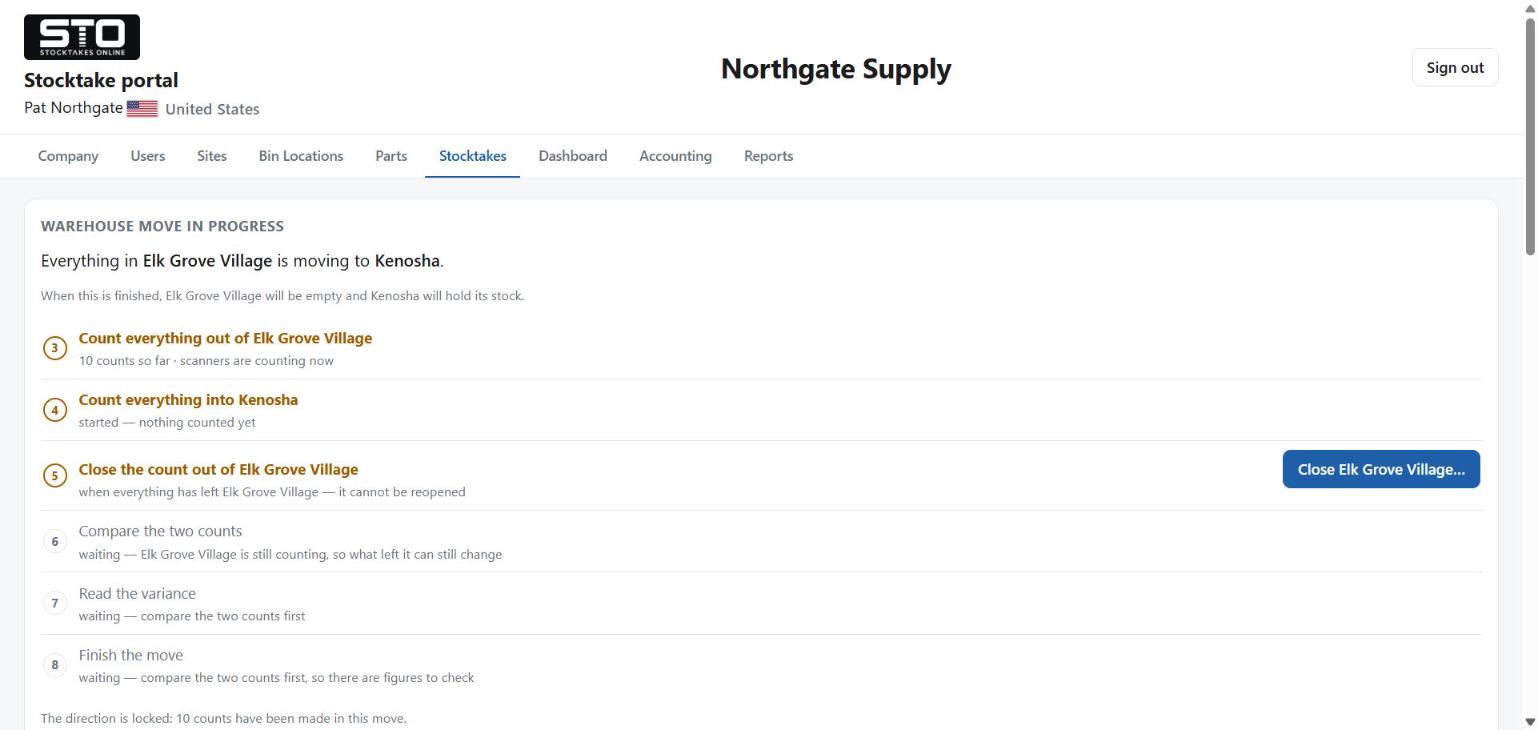
A card at the top of the Stocktakes tab, Warehouse move in progress, and under it six steps numbered 3 to 8 — the same numbers as the phases on this page. A green number is done, an amber ring is something to do now, a grey ring is waiting for an earlier step. Every step from here is done on this card.
Elk Grove Village is step 1 and Kenosha is step 2, everywhere. In the stocktakes list the two rows read warehouse move · step 1, the count out and step 2, the count in, and every dropdown lists them as 1. and 2. in that order. The rows have no buttons of their own: “run from the move card above”.
Was it set up wrong — the wrong way round, or the wrong site?
Once anything is counted, Cancel the move is gone and the card says “The direction is locked: 1 count has been made in this move.” Carry on and finish it.
3Count everything out of the old site
Step 3 on the move card: Count everything out of Elk Grove Village.
Did you choose to compare the old warehouse against your accounts?
Press Start counting on step 3.
Each operator signs in with the company name, site code
ELK, their name and PIN. Then: scan the bin, scan the part,
enter how many. See On the scanner.
The scanner stores nothing. Each count goes straight to the portal, and the operator is told at once if it did not arrive.
Same part, same bin, counted again?
The same part can sit in two bins. Counts add up per part, so
300 in A-01 and 200 in A-02 is 500 leaving
Elk Grove Village.
4Count everything into the new site
Step 4 on the card. Both ends can run at once — the truck loads and unloads the same afternoon.
Has the count out of Elk Grove Village started?
Press Start counting on step 4.
Operators sign in with site code KEN. Somebody moving from
the old building to the new one signs out and back in with the other code.
Scan the bin, scan the part, enter how many.
A bin label from Elk Grove Village will not scan at Kenosha. Each site has its own bins.
The count in has no close of its own. It stays open for recounts, and Finish the move closes it in phase 8.
5Close the count out
Step 5 on the card, when everything has left Elk Grove Village.
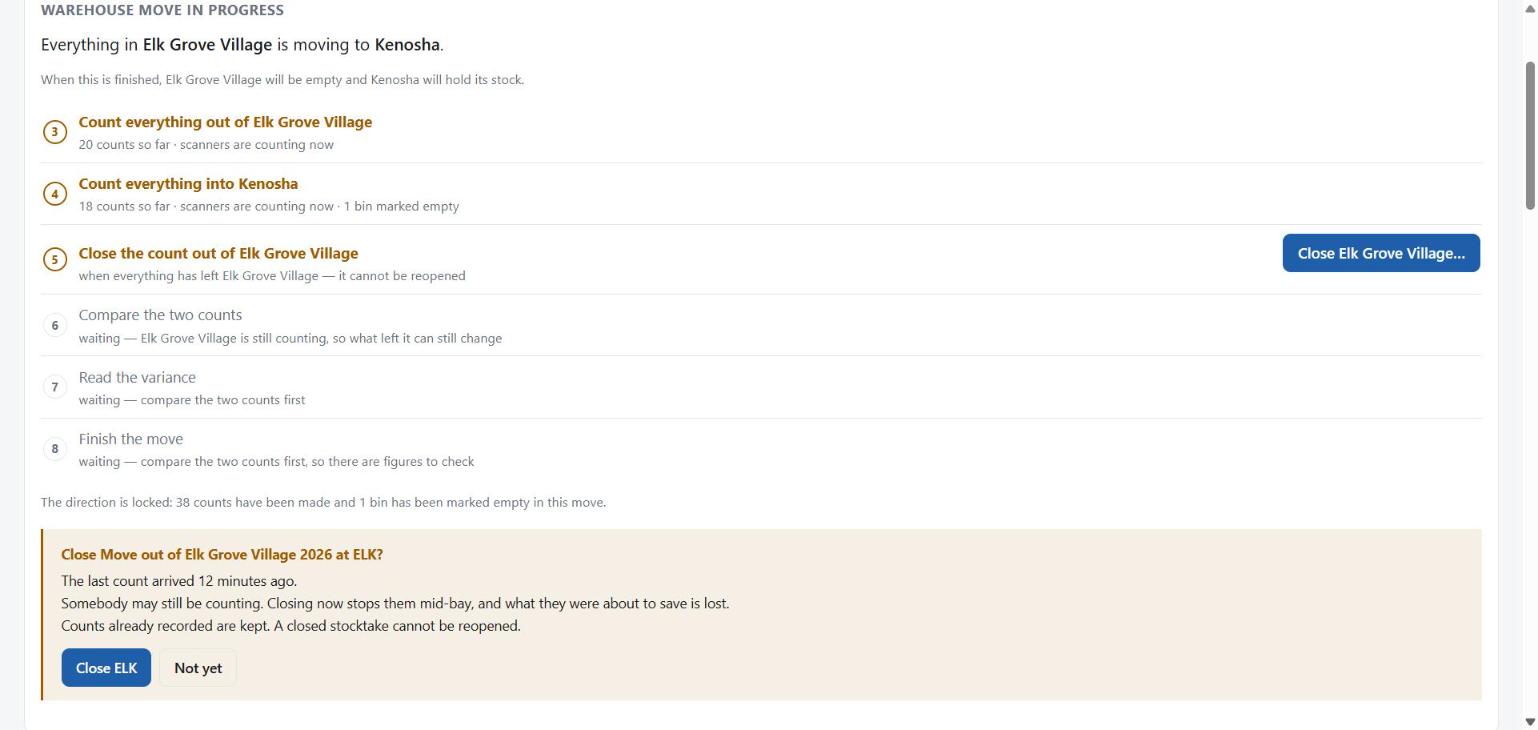
Get every Elk Grove Village scanner back in its cradle. Then press Close Elk Grove Village… on step 5. It appears once the count out has counts on it.
A panel under the card, Close Move out of Elk Grove Village 2026 at ELK?, with only what it found:
- scanners still holding a slot on this count
- when the last count arrived, if it was in the last fifteen minutes
- bins nobody scanned, with their codes
Is somebody still counting?
Are there bins nobody scanned?
The count out is closed for good. Nothing more can be scanned at Elk Grove Village for this move. The panel turns green, says what it did, and waits for Done.
6Compare the two counts
What went on the truck at Elk Grove Village, against what came off it at Kenosha.
Press Compare on step 6. It appears once Elk Grove Village is closed, and opens the Accounting tab at Moving warehouse. There is nothing to pick: the direction was set in phase 2.
Was any stock sold, scrapped or shipped while the move was on?
Press Compare the two counts.
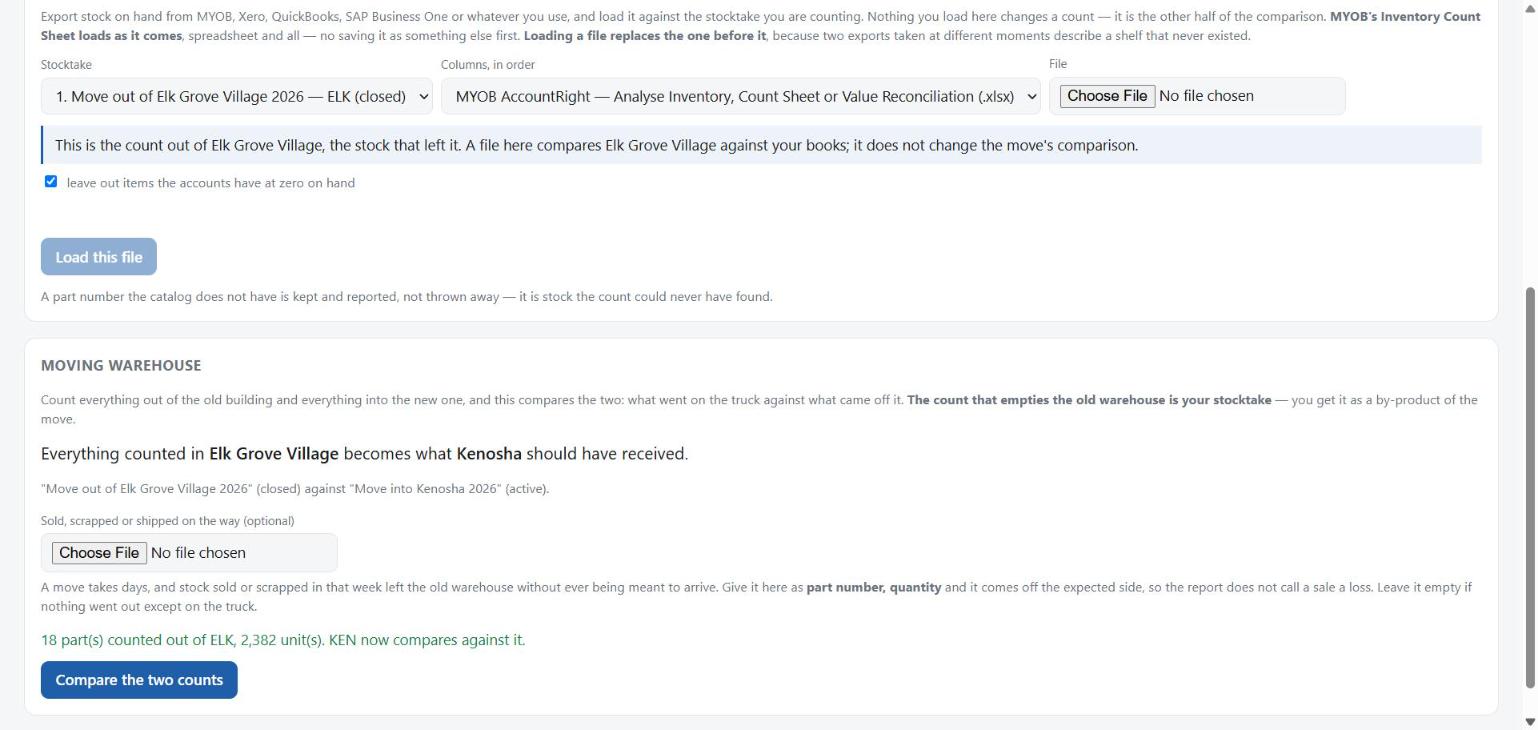
part number, quantity
FW-516,20
NB-08-40,5
If that list does not add up, the portal refuses the whole comparison rather than guessing. Name a part that was never counted out, or a larger figure than went out, and it stops and names the line:
FW-516 - 9999 left the old warehouse but only 500
was counted out of it
Nothing is written when it refuses. Correct the list and press the button again.
It compares by part, never by bin — the old building's bin codes do not exist at the new one. The comparison is a deliberate act by a named person, and the report says who and when.
7Read the variance
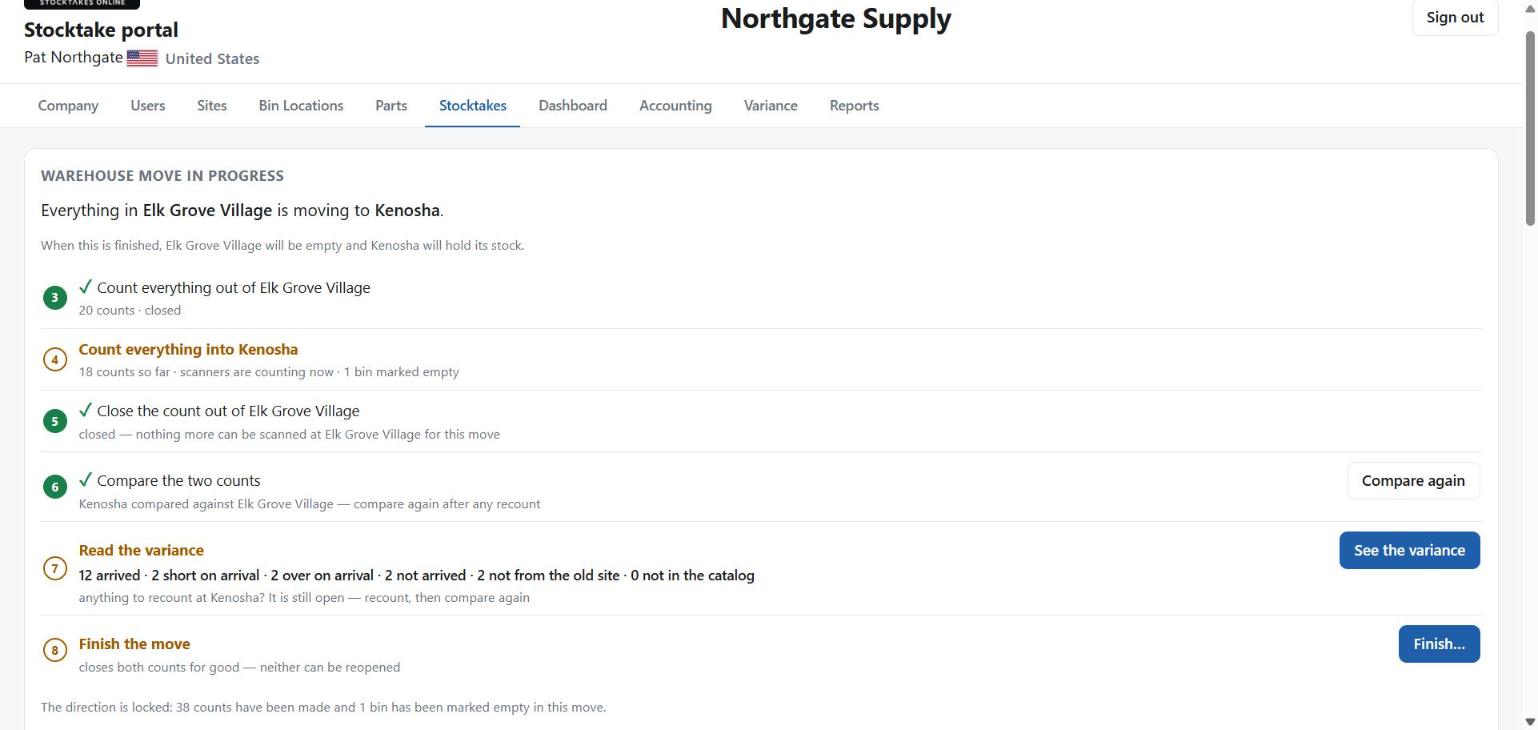
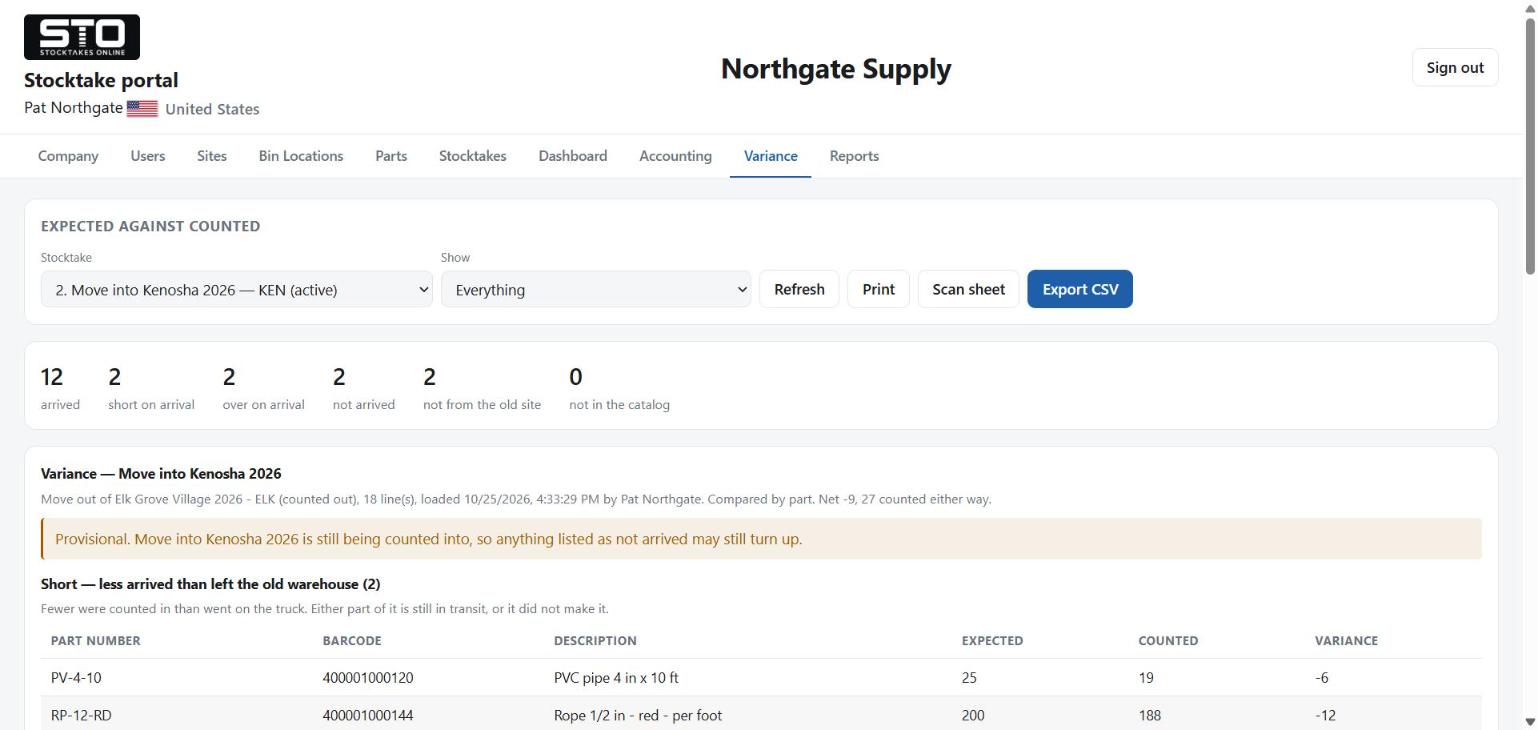
Step 7 on the card carries the answer in one line, and See the variance opens it in full on the Variance tab.
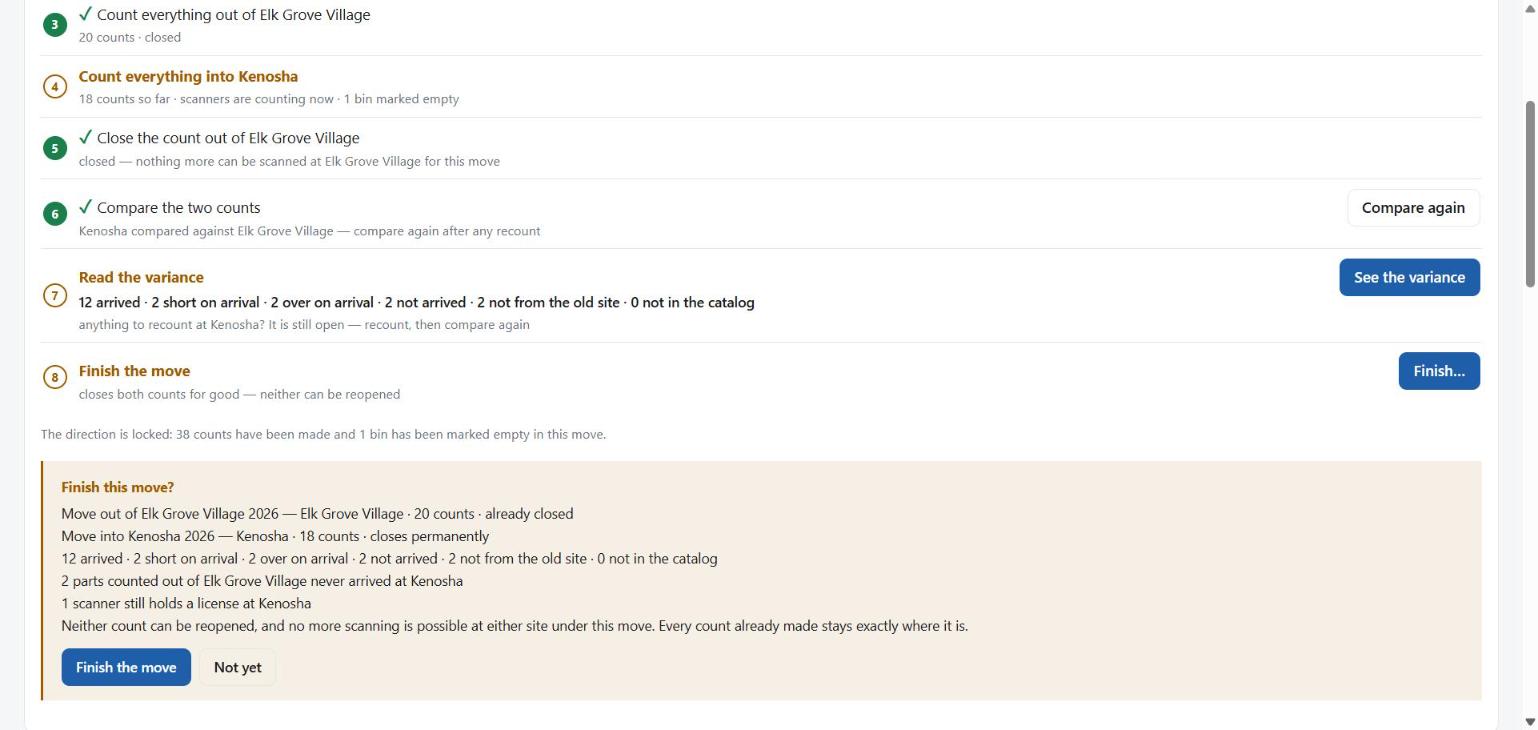
12 arrived · 2 short on arrival · 2 over on arrival · 2 not arrived · 2 not from the old site · 0 not in the catalog
Northgate Supply's own move, 24-10-2026: 20 lines counted out of Elk Grove Village, 18 counted into Kenosha.
| It says | It means |
|---|---|
| Arrived | The same quantity at both ends. This should be nearly all of it. |
| Short on arrival | Fewer came in than went out. Part of it is still in transit, or it did not make it. |
| Over on arrival | More came in than went out. Usually stock already at the new site, or a delivery that landed during the move. |
| Not arrived | Counted out, never counted in. Not the same as missing until the move is finished. |
| Not from the old site | Counted in, never counted out. |
| Not in the catalog | Always 0 for a move: both ends use the same parts list. |
Is there anything to recount at Kenosha?
While the count in is still open, the Variance tab says so above every figure — Provisional — because “not arrived” on the first morning usually means “still on a truck”.
8Finish the move
Step 8 on the card. The last step, and the one that seals both counts.
Press Finish… on step 8. It appears once the two counts have been compared.
A panel, Finish this move?: both counts with how many counts each holds, the same result line as step 7, and on a line of its own anything that should stop you — parts that never arrived, bins never scanned, scanners still holding a license, or a comparison older than the counts.
Are you happy with these figures?
Both counts are closed for good. Neither can be reopened. Every count already made stays exactly where it is.
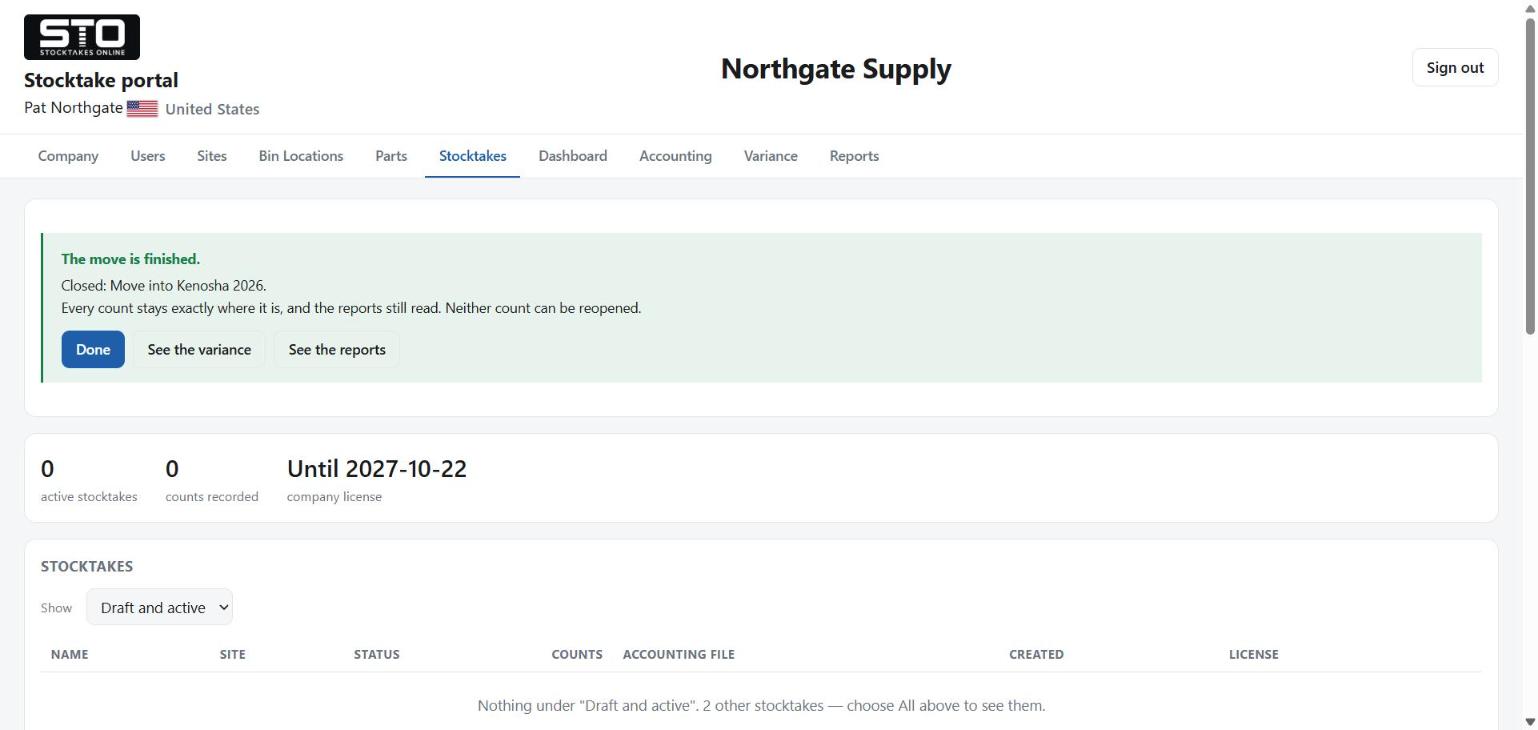
The move is finished. The panel says what it closed and offers See the variance and See the reports beside Done — the card leaves the screen, and those two tabs are where the record of the move is read, printed and exported from now. The company can start its next job.
9Afterwards
On Reports, Company totals — every site counts the moved stock once, where it is now. Elk Grove Village reads CLOSED · MOVED TO KENOSHA, with the line “Elk Grove Village's 20 counts are what left it for Kenosha. That stock is counted at Kenosha, so it is not added in a second time.”
The count out is Elk Grove Village's stocktake, and it can still be compared against your accounts weeks later. On the Accounting tab, choose Move out of Elk Grove Village 2026 and the portal says:
“This is the count out of Elk Grove Village, the stock that left it. A file here compares Elk Grove Village against your books; it does not change the move's comparison.”
The count in is not offered there at all: its comparison is the move, and a file loaded onto it would replace it.
Taking the empty warehouse out of use. Elk Grove Village is empty but still appears as a site. How it is retired, while keeping its counts and reports, is still to be decided.